Agents
Connect your agent
Add Audryo to Claude, ChatGPT, Codex, Cursor or VS Code and sign in. No API key.
Audryo runs a hosted MCP server. Add one URL to Claude, ChatGPT, Codex, Cursor or VS Code, sign in with your Audryo account, and your agent can work in Audryo. No API key and nothing to install. Your agent prepares journeys and emails; you review and approve the journey before launch, either in Audryo or directly in your agent chat. Once live, Audryo sends automatically under the journey’s rules, without approval for each delivery.
https://mcp.audryo.com/mcpChoose your agent
Open audryo.com/mcp and choose Claude, ChatGPT, Codex, Claude Code, Cursor or VS Code. Each tab has Connect Audryo, a short How to connect guide, copy buttons and example prompts. Tabs can be linked directly, for example Claude or Codex.
The page also includes an illustrative Claude conversation with a real Audryo-rendered launch email for the fictional OFFLINE demo brand. Its desktop and mobile controls let you inspect an example before connecting.
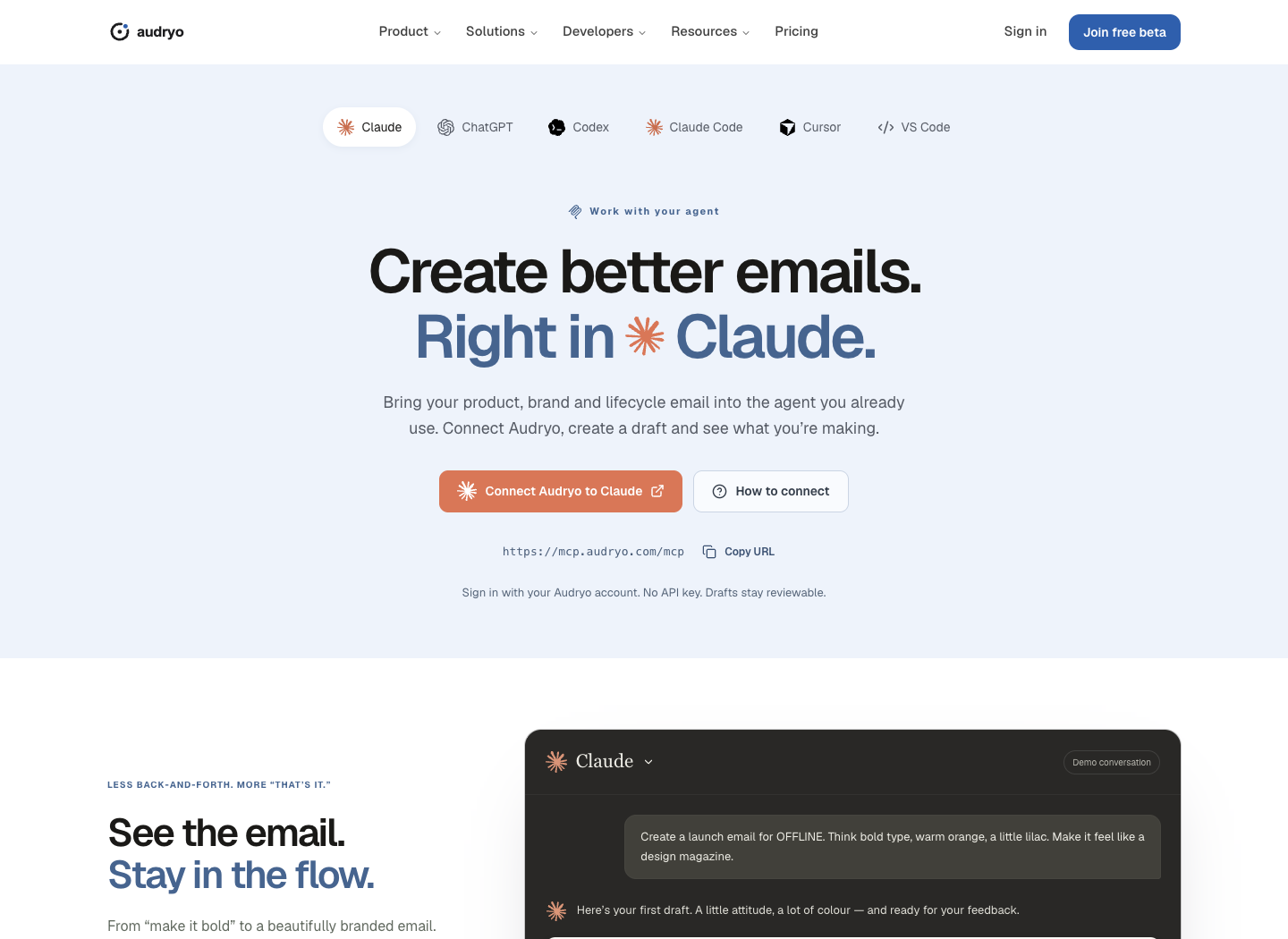
For Claude, Connect Audryo opens the custom connector form with Audryo’s name and URL. If your client does not prefill them, paste the URL from the page. Cursor and VS Code offer direct installation links. For terminal agents and ChatGPT, the button opens the appropriate instructions. Browser sign-in still uses your Audryo account.
In the app, Work with your agent uses the MCP icon for agent entry points. Connect agent on Today and in account settings opens this public page in a new tab. The app keeps the connection status and management controls; setup instructions live on the public page.

Claude (desktop, web and mobile)
- Open Customize → Connectors, click + Add, then Add custom connector.
- Name it
Audryoand pastehttps://mcp.audryo.com/mcp. Leave the advanced OAuth fields empty. - Click Connect and sign in with your Audryo account.
- In a chat, turn Audryo on in the tools menu and ask: *"Use Audryo: check my setup status."*
These steps follow Claude’s current connector guide.
The connector follows your Claude account, so it also works in the browser and on your phone. On Team and Enterprise plans an owner adds custom connectors first; each member then connects with their own Audryo account.
ChatGPT
- Open Plugins → Add → Add custom MCP server. In the desktop app, open Settings → Plugins first.
- Name the connection
Audryo, choose Streamable HTTP (not STDIO), and enterhttps://mcp.audryo.com/mcpin the server URL field, not the name field. - Choose OAuth and sign in with your Audryo account when asked.
- Review the permissions and create the plugin. Account and workspace policies apply; your workspace admin may need to allow custom MCP servers.
- Start a new chat, type
@, and select Audryo.
See OpenAI's current MCP connection instructions.
Codex (app and CLI)
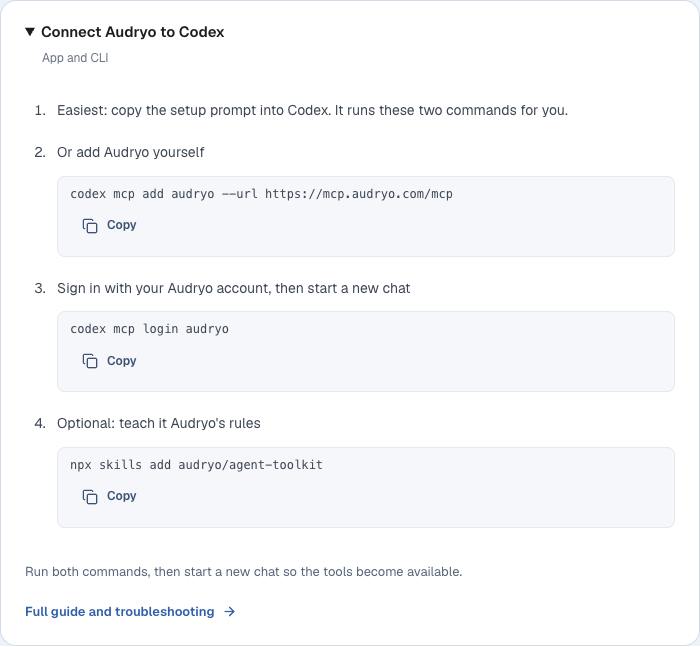
Open the Codex tab on audryo.com/mcp and copy both commands, or run:
codex mcp add audryo --url https://mcp.audryo.com/mcp
codex mcp login audryo
codex mcp login opens your browser to sign in. Then start a new chat. The Codex app and the CLI share this configuration.
Claude Code
claude mcp add --transport http audryo https://mcp.audryo.com/mcpThen run /mcp in Claude Code, pick audryo and sign in. Add --scope user to make Audryo available in every project.
Cursor
Open the Cursor tab on audryo.com/mcp and click Connect Audryo, or add this to .cursor/mcp.json:
{ "mcpServers": { "audryo": { "url": "https://mcp.audryo.com/mcp" } } }Cursor shows Needs login next to Audryo in its MCP settings. Click it and sign in.
VS Code (Copilot agent mode)
Open the VS Code tab on audryo.com/mcp and click Connect Audryo, or run MCP: Add Server, choose HTTP and paste the URL. Start the server and sign in when VS Code asks.
Sign in and choose what the agent may do
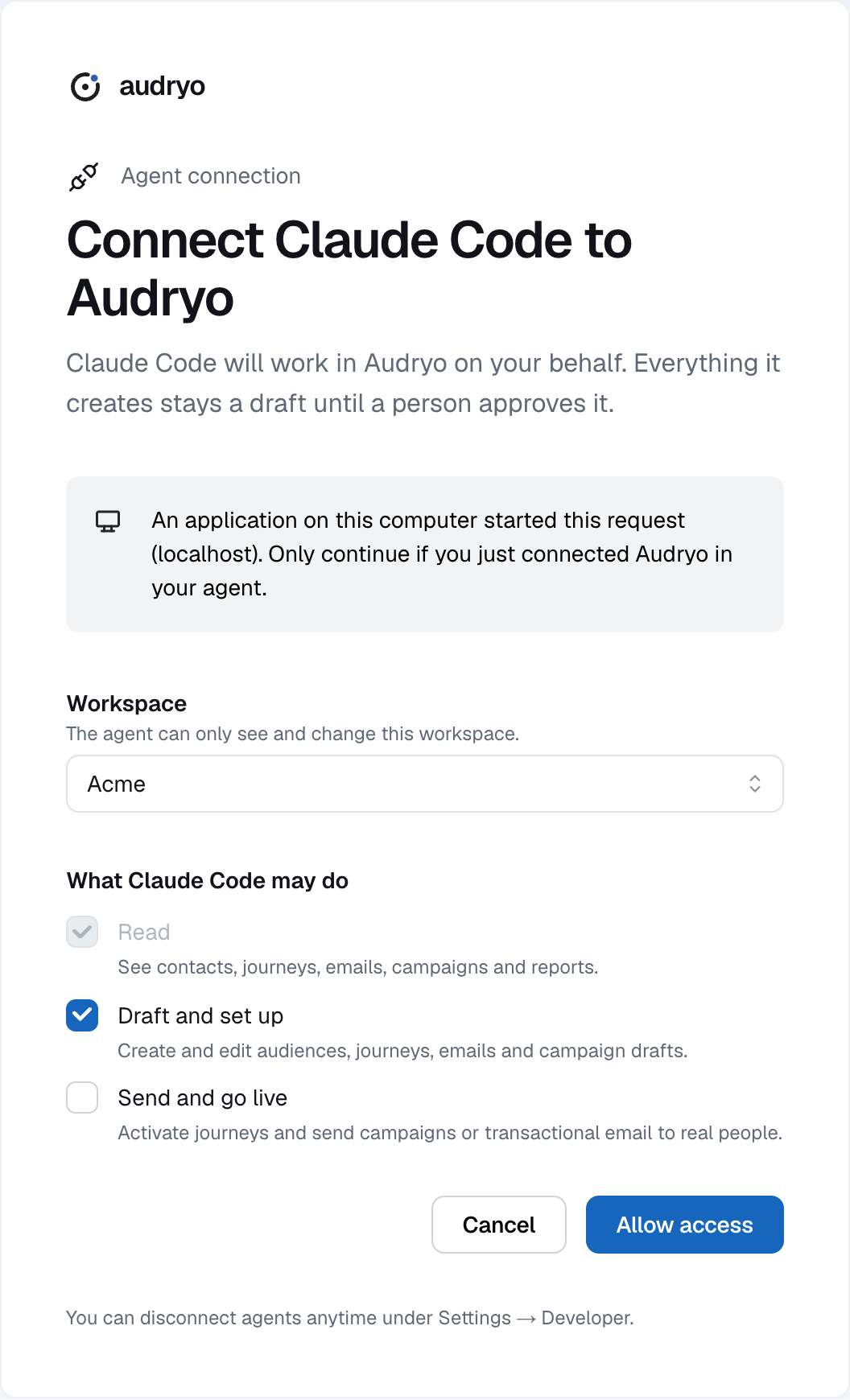
Every client opens the same Audryo page. Pick the workspace and the access level. Send and go live is off by default: without it the agent prepares drafts but cannot send. If a later task needs it, your agent asks you to approve exactly that in the browser.
Back in Audryo, account settings confirm the connection and suggest a first prompt.
Manage connected agents
Settings → Developer → Connected agents lists every agent you connected, with its workspace, access and last use. Disconnect ends its access immediately.

Preview emails inside your agent
Ask: *"Create a welcome email as a proposal and show me the preview. Do not send it."*
The hosted tools preview_email (saved email) and preview_email_draft (unsaved draft) use Audryo's existing renderer. In clients with MCP Apps support, the result includes an inline preview with subject, preheader, Desktop, Mobile (375 px) and Plain text views. Missing values, unresolved variables and draft lint findings appear below it. The mobile view shows a viewport preview; it is not a guarantee for every email client.
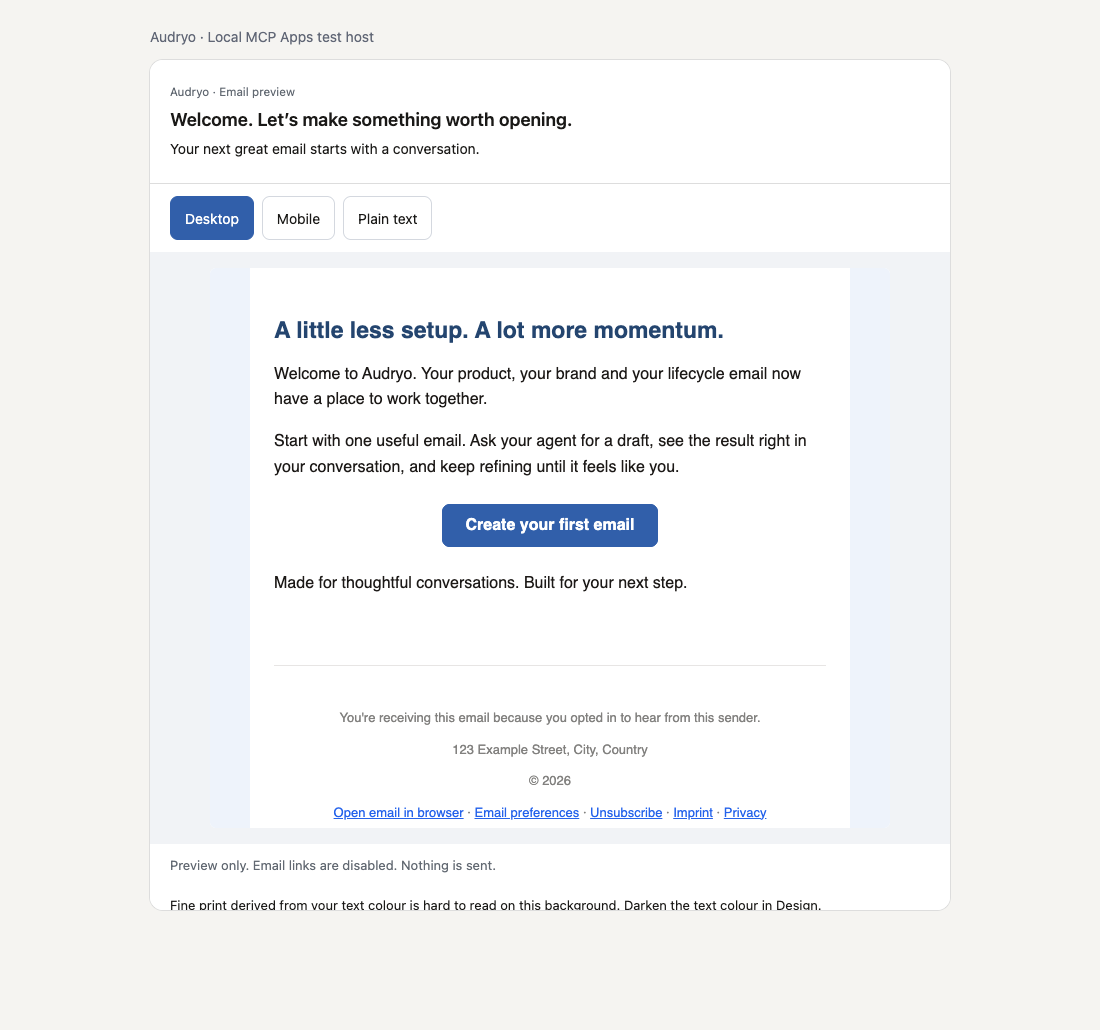
Open in Audryo opens the saved email and is available on saved previews. Unsaved drafts remain in the conversation until saved as a proposal. Clients without MCP Apps still receive the rendered HTML, plain text and findings; saved previews also include the authenticated Audryo link. Inline UI support and workspace policies depend on the client. If the tools are missing from an existing connection, refresh its tools or reconnect and start a new chat.
Previewing never sends, publishes or saves an email. Email links are disabled inside the preview; use Audryo to review the actual destination URLs.
Troubleshooting
| Problem | Fix |
|---|---|
| The agent says Audryo's tools are not available | Start a new chat or session; tools load when it starts. In Claude and ChatGPT, also turn Audryo on in the chat's tools menu. |
| Sign-in does not open | Codex: run codex mcp login audryo. Claude Code: run /mcp. Cursor: click Needs login. |
| ChatGPT has no option to add a custom MCP server | Open Plugins and check your account or workspace permissions; ask your workspace admin to allow custom MCP servers. |
| The agent asks for an API key | It is not needed. Point the agent to this guide and the hosted server URL. |
| The agent sees the wrong workspace | Disconnect it in Connected agents and connect again, choosing the right workspace. |
For CI jobs, scripts and servers without a browser, use an API key with the audryo CLI instead: see MCP, CLI, and skills.