Emails
The editor
Sections, blocks, design, preview, footers, and Ask AI.
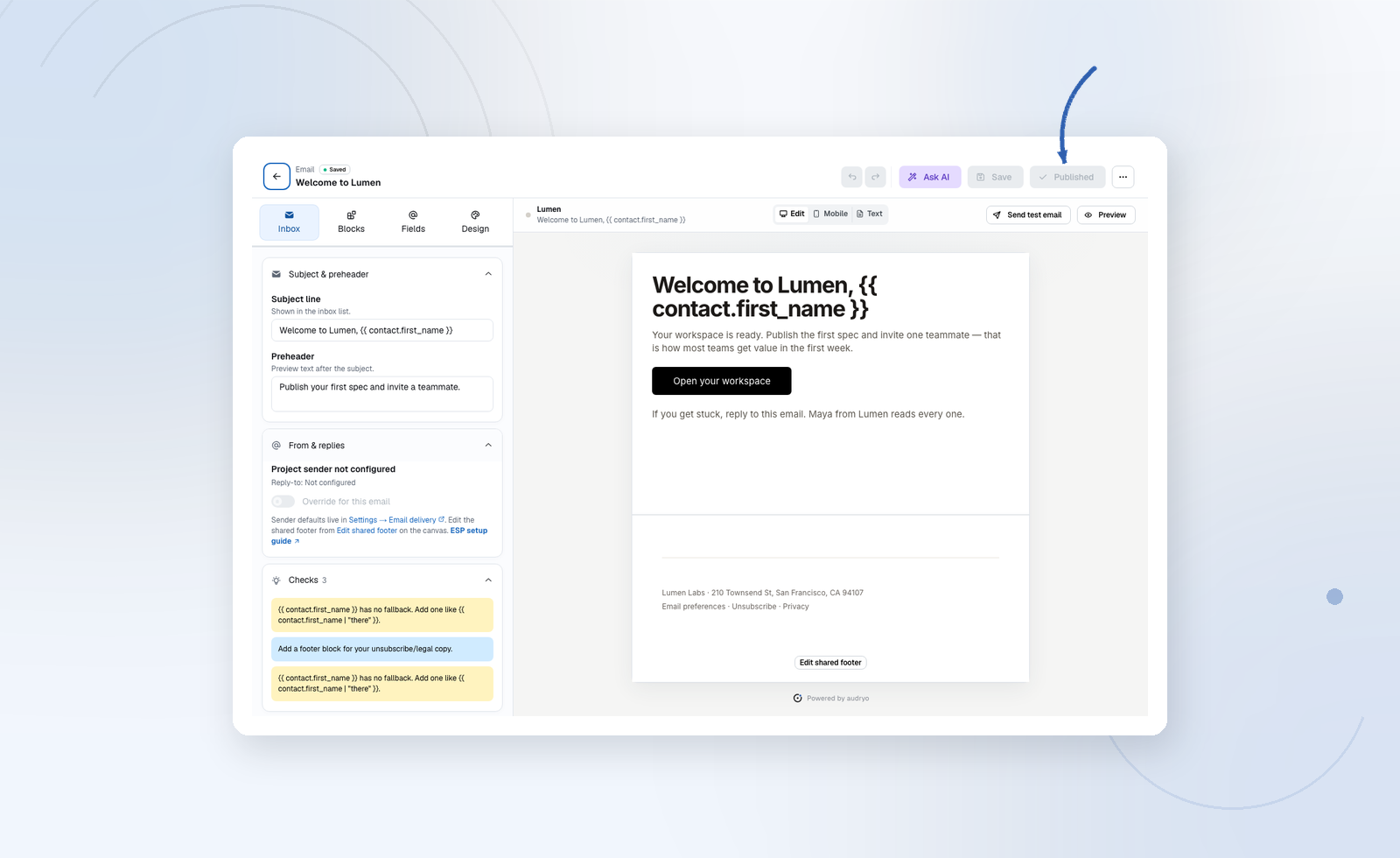
Every Audryo email opens in the same editor, whether it belongs to a Journey, a campaign, or a transactional send. This page explains each area and the few rules worth knowing.
Layout
| Area | What you do there |
|---|---|
| Top bar | Name, Ask AI, Save, Publish |
| Canvas bar | Edit / Mobile / Text, Preview, Test data; in preview: Desktop / Mobile, Send test email, Exit preview |
| Left sidebar | Email / Design / Layers, plus Block when a block is selected |
| Canvas | The email itself, including the shared footer |
| Right sidebar | Blocks and Sections — click to insert, or drag onto the canvas |
The name is internal. Recipients see the subject and preheader — write those as carefully as the email itself.
Select a heading, button, or image and its options open under Block on the left. Click the canvas background (or press Escape) to leave block settings:
| Left panel | What it holds |
|---|---|
| Block | Block-specific content first, followed by collapsed Layout, Spacing, Background, and Display condition sections |
| Subject & preheader, From & replies, merge tags, and Checks | |
| Design | Colors (incl. Icons), font, content width, corner radius, saved themes, Use brand kit, and Push styles to drafts |
| Layers | Outline of every block. Check top-level blocks to Save as section; click a name to edit it. |
Building the content
Sections
Ready-made modules you drop in and edit: welcome note, hero, image + text, feature cards, numbered steps, stats strip, customer quote, digest list, offer band, focused call to action, and more. Start here when you need a complete block of heading, proof, and action.
Blocks
Heading, text, button, image, logo, icon, columns, card, divider, spacer, quote, link card, code, and repeat. Click a tile on the right, or drag it onto the canvas.
- Card can contain text, images, buttons, and Columns. Drag a Columns block into the card to create a row with a shared background and border. Columns stack on mobile by default; switch off mobile stacking to keep them side by side.
- Repeat renders a list from data, such as receipt line items. See Personalization.
- Code shows a short snippet to copy. It is not a place for raw HTML.
- Image and link card open the project image library.
- Icon opens the searchable icon set (Lucide, Phosphor, Heroicons, Tabler, and more).
The same common sections appear in the same order for every block. Open only the section you need; block-specific controls stay at the top. Merge tags are shown as readable chips on the canvas while the exact {{ contact.field }} token remains in the saved email. While editing a heading, paragraph, quote, or link card, use the { } menu in the text toolbar to insert a contact field at the current cursor position.
Display condition
Every block can hide itself unless a contact, event, or tag matches. Open the selected block and set Display condition: a field (contact.plan, tag.vip), an operator (is present, equals, contains, greater than, is empty), and a value when needed. Preview evaluates the same way send does.
Saved sections
In Layers, check the top-level blocks you want (Shift-click to select a range), then Save as section. Insert saved sections from the right rail. They return as the same top-level blocks, remain fully editable, and never gain an extra card or grouping layer.
Design
Design settings apply to the open email and pull from the Brand Kit by default:
- Text, heading, and button colors
- Background (full-bleed behind the card) and card colors
- Font (Brand Kit families, email-safe stacks, and Google Fonts)
- Content width (default 640 px) — the white email card, centered like an inbox
Use brand kit sits below the color fields and reapplies the project palette and body font when you want a refresh. New emails already start from the kit; use this only after the kit changed or after local tweaks. Save as theme stores the current look. Push styles to all drafts copies it onto other drafts and templates. Published emails keep the style they were published with.
From & replies lets one email use a different sender name, reply-to, or CC/BCC. The address must still be on your verified sending domain.
Images and icons
- Choose photos from the image library on Image and Link card blocks, or upload a new one. Linked images from other sites fail the publish check.
- The Logo block uses the Brand Kit mark so one swap updates every email. Size it on the selected block.
- Browse all icons opens the bundled libraries; they follow the colour you set. Footer social icons use the same picker for custom networks.
- Want custom illustrations? Generate them with your agent.
Preview and test
| Mode | Shows |
|---|---|
| Preview | Rendered email with merge tags, conditions and repeats evaluated from Test data; delivery adds recipient links and tracking |
| Mobile | The same email at phone width |
| Text | The plain-text version for clients that do not show HTML |
Send test email delivers a marked copy to addresses you choose. It does not enroll anyone and does not count as a campaign send. Always open the test on a phone before you publish.
Use Test data to search for and select a contact and enter Event data (JSON) as an object. The rendered preview and test send use that contact's profile and event values; the authoring canvas retains merge tags. Check missing values and unresolved tags before publishing. Without a chosen context, preview uses samples. Previewing never changes the contact or saves test data into the email.
Footer
Marketing and newsletter emails always end with a footer that holds your company details, a preference link, and unsubscribe. Audryo adds the unsubscribe link at send time, so it cannot be forgotten.
Choose the clearly marked Shared footer at the bottom of the canvas to edit it in place, just like any other part of the email. Selecting one of its blocks opens the normal block inspector and text toolbar while the rest of the email stays visible. Footer changes save automatically to the project:
- Build it with text, images, buttons, columns, and icons.
- Switch Edit / Preview in the toolbar to judge the rendered footer at content width.
- Link offers unsubscribe and email preferences as targets; they are personalized per recipient at delivery.
- Each language has its own footer layout. The editor always opens the footer for the current email language, so there is no second language switcher to reconcile.
- Footer typography, text/link/icon colours, rules, and background live under Design in the footer editor. They are stored with each language's visual footer, so the canvas, Preview, and delivered email use the same design.
Save shared footers applies to all future deliveries, including emails that are already published. Confirmation and system emails use their own footer variants.
Ask AI
Ask AI opens as a deliberately small chat: choose Focused or Rebuild at the top and describe the change in the prompt. Larger workflows remain better suited to your own connected agent.
Choose Focused edit for normal changes. It addresses existing blocks by their stable ids and sends the complete current editor structure plus the available block palette to the model. It may edit fields and complete sections while preserving the main hierarchy and configured logo. Choose Rebuild email only when you want a substantially new body structure.
Every result is compiled and validated on a copy, then applied as one normal editor change. Use Undo AI change, the toolbar Undo button, or the standard keyboard shortcut to restore the previous email. Ask AI cannot publish or send, and it uses supported claims from the active Foundation revision.
Related
Editing another language
Open a language chip in the email list or grid to edit that version directly. Each chip shows its publication status. In the editor, use the language selector to switch between existing translations. The subject, content, footer, history, and Publish action belong to the selected language. Unsaved changes must be saved or discarded before switching. Publishing one language does not publish the others.
When language statuses differ, the email overview states how many languages need review. To create a missing translation, publish the source language first and use Add translation in the editor's menu.
Organize emails in folders
Use New folder in Emails to create one level of folders, such as Premium or Free. Collapse a folder to keep the library compact. Drag an email by its handle onto a folder, or use Move to folder from its folder actions. A move can be undone from the confirmation. List and grid views share the same folders. Search includes folder names and works across folders with the language and assignment filters.
All languages and versions of an email move together. Journey email folders stay attached when a new journey version is created. These folders are separate from journey folders and do not change content, publication or sending. Removing a folder puts its emails in Unfiled without deleting them.
Agents can use the email folder tools or /email_folders API. Read the email ID, folderId and folderRevision from message context before moving it with expectedFolderId and expectedRevision; stale moves return 409.